After months of work securing impressive speakers and creating the perfect content for your audience, event registration is full! The content team is (rightly) convinced the crowd is going to love what they see and, as a byproduct, gain a deeper respect and appreciation for your company. Nothing can stand in the way now…right?
As any experienced event professional will tell you, having the right content is only half the battle. The way it’s presented makes a huge difference in how it’s received. Like everything else these days, it’s all about the experience your audience has while your speakers are delivering that content. They need to be able to see the visuals, hear the speaker, and get the message without interruption (i.e., technical difficulties), to get the full impact of the message being delivered.
When planning av requirements for events, simple preparation prevents technical issues and protects the attendee experience.
Audiovisual
- Set-up downstage / confidence monitors for speakers to see both their slides and speaker notes at the same time
- Use a countdown clock to keep the speakers on time. Make sure it’s clearly visible to them and that they are prepared to pay attention to it.
- Survey your speakers for special needs (laser pointer, internet connection for demos, audio, video, etc.)
- Work with your AV production service provider to determine:
- The appropriate type of microphones for your speakers (lavaliers, podium microphone, wireless handheld etc.)
- The type, number, and placement of audio speakers to ensure everyone in the audience has the same experience
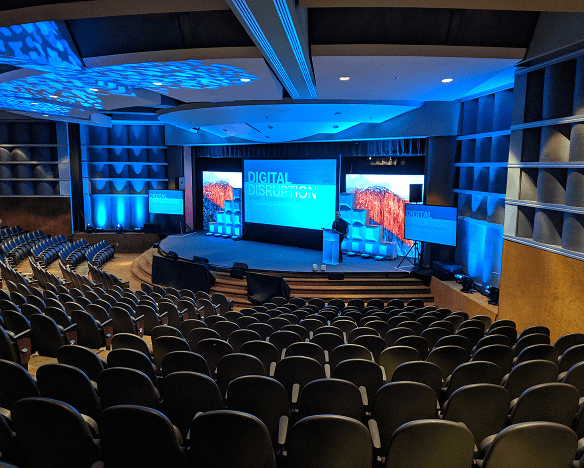
- The size, type, number, and placement of screens to place throughout the venue for maximum audience visibility
- Make sure you have a slide advancer (aka ‘clicker’) – and a backup in case that one is lost or stops working!
Set-up & Logistics
- Decide where speakers enter and exit the stage
- Determine where speakers will be ‘on-deck’ when waiting to speak
-
- Green room or ‘speaker ready’ room with a monitor that has a live feed of the meeting and an audio connection, so your presenters know what’s going on at the main stage while they’re prepping
-
- Unobtrusive area for getting mic’d, stage left, right, or back of room
- Hold a mandatory rehearsal with your speakers. Your AV partner can brief speakers on best practices at this time (microphone technique, using the clicker, staying within the defined area on the stage)
-
- Consider requiring the content manager to arrive 15-30 minutes early to review any updated content with the production team
-
- Ask your AV Production team to test ALL the equipment*
- Add a Speaker Handler/Liaison to provide a ‘white glove’ experience for your presenters. This person will assist with rehearsals and guide presenters as they move from the green room to the mic’ing station to the stage.
-
- Share the following ‘Tips for Presenters’ checklist with your speakers, upon securing their participation
Further reading: See how our team executes executive-stage programs
Presenter Checklist
- If you are using a Mac to create your PowerPoint slides, test your slides on a PC before the event. Transitions, graphs and media files occasionally have compatibility issues you’ll need to fix before presenting on a PC. Bring a PC-ready and Mac-ready copy of your presentation. Before using Keynote to make your slides, coordinate with your speaker manager to be sure you can present from a Mac; if you give enough advance warning, they should be able to coordinate with their AV partner to bring an appropriate laptop.
- Consider the aspect ratio of your slides. If it hasn’t been communicated, ask! A presentation with a 16:9 ratio (today’s standard) will fill up the entire space and have a more visually pleasing effect. A 3:4 ratio presentation is going to have ‘dead space’ (black bars) on either side if the screen is a widescreen format.
- If you want to use audio in your presentation, be sure to notify your conference organizers that you need an audio connection.
- If you create a presentation with video or audio in PPT, be sure to embed the files into the file. Test the embedded file to be sure it works. Remember that a .mov file will most likely NOT play in PowerPoint on a PC and .wmv it will NOT play on a Mac.
- Organize your speaking notes into simple bullets and talking points
-
- Your confidence monitor will be placed downstage from you, and depending on the size, it may be hard to read from your standing point, so keep your notes simple.
-
- Try to avoid looking at the notes your confidence monitor too much. This should be used as a quick reference only.
-
- Consider creating your notes with a dark background and light text. A white background on the screen can sometimes create a glow shadow on the presenter
- Use only offline content. If you rely on live web content, you may be in for an unpleasant surprise if there are bandwidth issues. If you must use online content, be sure to coordinate with your speaker team.
- When you email your slides, bcc yourself to make sure the attachment comes through correctly.
- Always have a backup copy of your presentation in the cloud (Box, Dropbox, or another cloud storage site), just in case the presentation you sent to the event team (or bring on USB) gets lost or corrupted.
Essential Audio-Visual Equipment for Different Event Types
Use this section to map AV requirements for events to the format, audience size, and room geometry—so the plan fits the space and experience goals.
Small internal meetings (20–80 attendees)
- Audio: 2–4 full-range speakers on stands; 1–2 wireless handhelds; 1–2 lavaliers; small-format mixer; DI for laptop audio.
- Video: One projector and screen or a 98″ display; 16:9 slide deck; single confidence monitor; slide advancer with backup batteries.
- Lighting: Simple presenter wash; dimmable house lights; add backlight if recording.
- Pro tip: Embed media as .mp4 (H.264), test playback on the show laptop, and avoid live internet demos unless a dedicated line is guaranteed.
Further reading: Event production planning insights
Breakout rooms at conferences (50–200 attendees)
- Audio: Distributed speakers for even coverage; 2–4 wireless mics; podium mic; zone control to avoid hotspots and feedback.
- Video: Dual screens for wide rooms; mirrored feeds; confidence monitor with notes; hardline playback computer.
- Lighting: Consistent presenter wash; minimize screen spill; downlights at aisle mics for Q&A visibility.
- Pro tip: Centralize content collection with a deadline and schedule 10–15 minute rehearsal holds per room.
General sessions and keynotes (300–2,000 attendees)
- Audio: Line arrays or clustered mains with front fills and delays; redundant RF; dedicated A1 at FOH; fresh batteries for every session.
- Video: Large-format projection or LED wall; IMAG cameras for larger rooms; redundant playback; a downstage row of confidence monitors.
- Lighting: Key/fill/backlight for presenters; scenic looks in brand colors; cueable lighting scenes; camera color checks if recording.
- Pro tip: Lock content 24–48 hours prior; run cue-to-cue with all speakers and show callers.
See large-scale event setups in action
Hybrid/virtual events
- Audio: Program mix plus clean feed for stream; echo cancellation; IFB/comms for remote producers and talent.
- Video: Switcher with ISO records; graphic key/fill; safe areas for slides; reliable encoders.
- Lighting: Presenter lighting to camera standards and color balance; avoid moiré with LED walls.
- Pro tip: Hardline internet with bandwidth headroom; redundant stream paths; distribute a minute-by-minute run of show.
Troubleshooting Common AV Issues and Solutions
Reduce show-stoppers by planning for the failure modes most likely to occur—and rehearsing the fixes.
Mic dropouts or RF interference
- Likely causes: Saturated RF spectrum, depleted batteries, obstructed antennas.
- Solutions: Frequency coordination, fresh batteries per session, proper antenna placement, and backup handhelds at the ready.
Uneven audio coverage or feedback
- Likely causes: Suboptimal speaker placement, excessive gain, reflective rooms.
- Solutions: Distributed speakers with delays, notch EQ problem frequencies, coach mic technique, separate mics from PA coverage zones.
Slide or media playback failures
- Likely causes: Codec mismatches (.mov on PC, .wmv on Mac), missing embedded files, last-minute deck swaps.
- Solutions: Embed media as .mp4 (H.264), standardize show laptops, lock content deadlines, maintain mirrored playback machines.
Confidence monitor readability problems
- Likely causes: Small fonts, low contrast, poor monitor placement.
- Solutions: 24–32 pt minimum, high-contrast note slides, downstage monitor placement tested during rehearsal.
Projector/LED resolution or aspect mismatch
- Likely causes: 4:3 decks on 16:9 displays, scaling artifacts.
- Solutions: Standardize 16:9, confirm native resolutions in advance, test all source devices.
Recording looks dark or flat on camera
- Likely causes: Insufficient key/fill, color temperature mismatch.
- Solutions: Presenter wash with balanced color temperature, camera shading and test shots.
Budgeting and Sourcing AV Equipment: Tips for Event Planners
Align budget with scope and risk. Prioritize the items that protect audience experience and the message.
Budget drivers
- Venue size and coverage plan (speakers, fills, delays).
- Mic count and RF redundancy.
- Display choice: projection vs LED wall (impact on brightness, rigging, cost).
- Crew roles: A1, V1, LD, PM, stage manager.
- Rehearsal time, changeovers, and content management.
- Recording/streaming (cameras, switcher, encoders, ISO records, post).
See how we structure shows and teams
Sourcing strategies
- Choose a partner with executive-stage experience, centralized content control, and cue-to-cue documentation.
- Confirm travel readiness and local labor coordination for roadshows and multi-city tours.
- Ask for a detailed equipment list mapped to room plans and seating charts.
Stretching the budget without risking the show
- Prioritize audio intelligibility and clear visuals over non-essential effects.
- Lock content deadlines and standardize playback to reduce overtime risk.
- Consolidate rehearsals and build a realistic run-of-show to minimize idle time.
- Reuse scenic and templates across days/tracks when appropriate.
FAQs
- What are the most common AV problems during events?
RF mic dropouts, feedback from poor placement/gain, media playback/codec issues, and confidence monitor readability. Prevent with frequency coordination, distributed speakers and EQ, embedded .mp4 media, and high-contrast notes. - How much should I budget for AV equipment rental?
It depends on room size, display type (LED vs projection), mic counts and redundancy, crew roles, rehearsals, and whether recording/streaming is required. Prioritize audio clarity, reliable playback, and experienced crew. - What types of AV equipment are essential for a successful conference?
Distributed PA with delays, wireless lavs/handhelds, confidence monitors, dual screens or LED wall, redundant slide playback, presenter lighting, and IMAG cameras/switching in larger rooms. - How do I choose the right audio-visual provider for my event?
Ask about executive-stage experience, run-of-show/cue-to-cue documentation, centralized content management, travel readiness, and local labor coordination.